

Point and edit
Have a question? Ask ChatGPT Ask Claude
You don’t have to describe where something is. Click it.
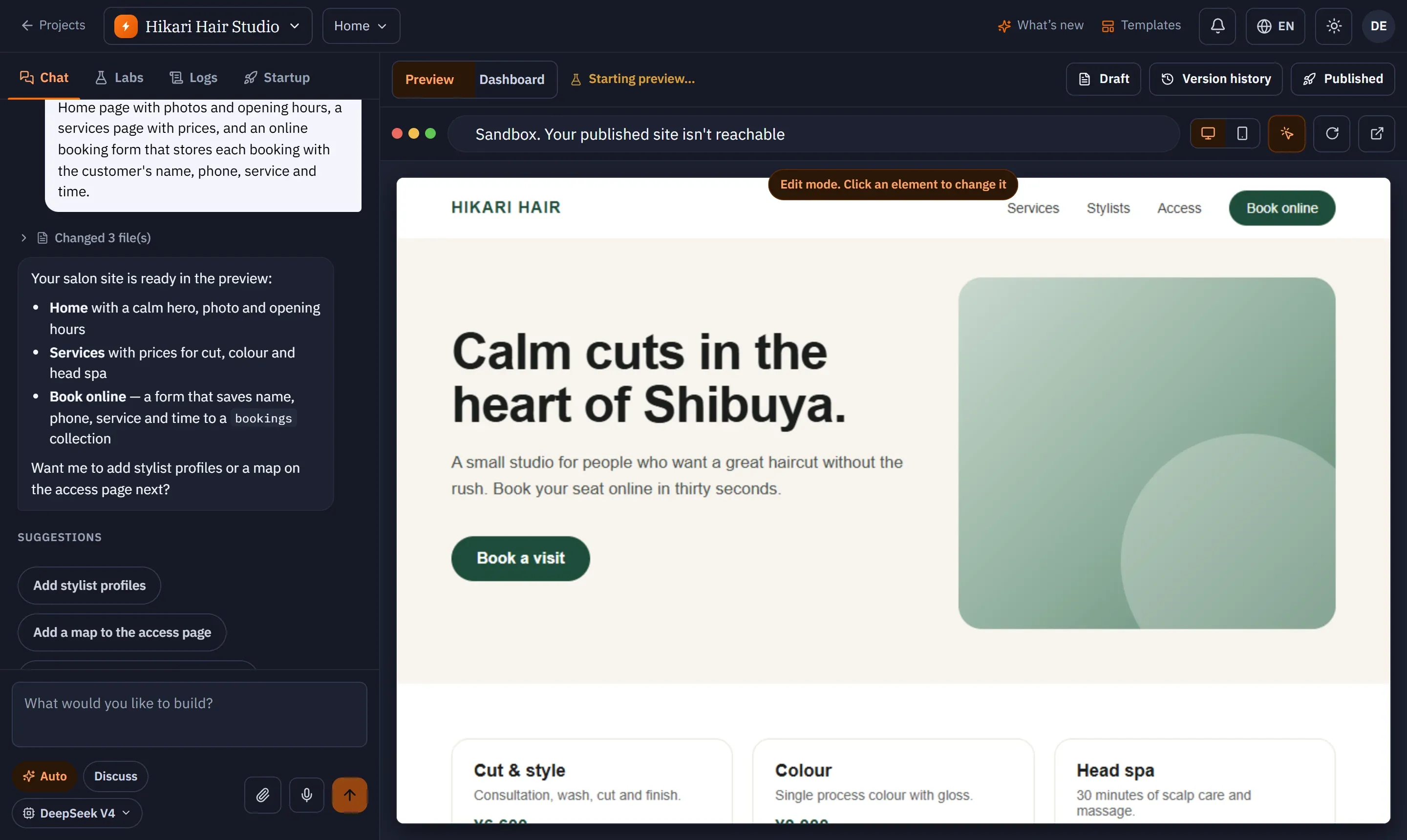
- In the preview toolbar, turn on Edit (the pencil). A banner says Edit mode. Click an element to change it.
- Click a heading, paragraph, button, link or image. A panel opens: Selected: …
- Change it directly, or press Ask AI and describe the change — the element is attached to your chat message so the AI works on exactly that part.
- Press Save to apply direct edits.
What you can change directly
Section titled “What you can change directly”| For | You can set |
|---|---|
| Text | The text itself (Edit text) |
| Font | Font (Default, System, Serif, Monospace), size, weight, line height, alignment, text colour |
| Links | URL and Open in a new tab |
| Boxes | Background colour, padding, corner radius |
| Images | Replace the image (upload), alt text or Decorative, width, fit (cover, contain, fill, none) |
SKAEL warns you when text colour has too little contrast, or when body text is smaller than 16 px.
When you select part of a text, a small toolbar offers Bold, Italic, Underline, text colour, size and link; each applies immediately.
When direct editing isn’t possible
Section titled “When direct editing isn’t possible”- An element that contains more than plain text (for example a card with a title and a button) can’t be edited as text — use Ask AI.
- Some components can’t have their style edited directly yet — SKAEL tells you and suggests Ask AI.
- In Agent Mode, direct edits wait while the agent is working or while the preview isn’t running.